Remote support · Guide
How to get remote support, step by step
We use a free program called RustDesk. You download it, open it and send us two pieces of info on WhatsApp. We take care of the rest. No tech skills needed.
⚠️ Important: send your ID and password only to SOSFIX
Those two details give access to your device. Only send them to our official WhatsApp +57 322 909 7897. Never share them with strangers, even if they say they're calling from a bank, Microsoft or tech support.
Windows
The file downloads straight from sosfix.us (official RustDesk 1.5.0, 64-bit, 24.7 MB).
1Download the program
Tap the button. The file is saved to your Downloads folder.
Download for Windows2Open it and accept the security prompts
Double-click the file rustdesk-1.5.0-x86_64.exe.
If Windows asks “Do you want to allow this app to make changes to your device?”, click Yes.
If a blue screen says “Windows protected your PC”, click More info and then Run anyway.
If RustDesk offers to install itself, you can install it or just use it as is; it works the same for us.
Windows prompt: “More info → Run anyway”
Reference image – real screenshot coming soon
3Find your ID and password
On the left side of RustDesk you'll see ID (box 1) and One-time password (box 2).
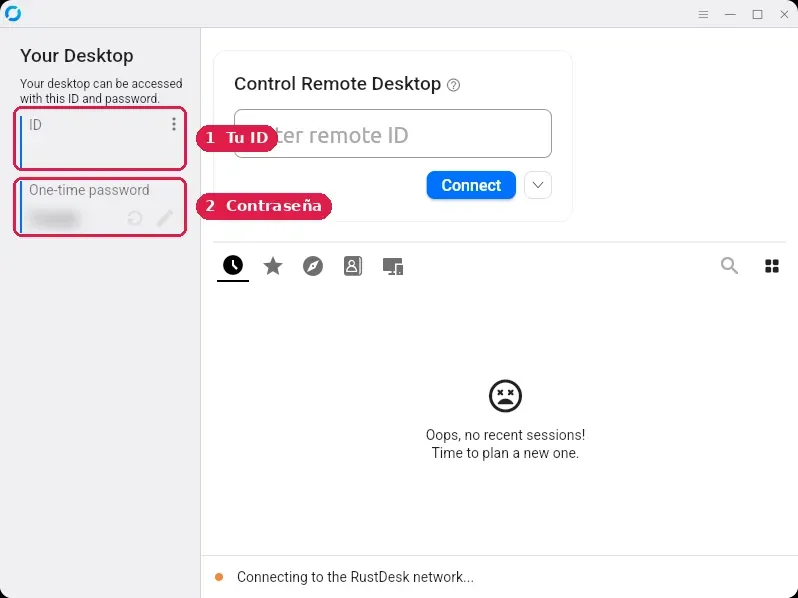
Real screenshot of RustDesk 1.5.0. Box 1: your ID. Box 2: your password (blurred here). 4Send us your ID and password on WhatsApp
Message us at +57 322 909 7897 with both: the ID (a long number) and the password (letters and numbers). Keep RustDesk open while we work.
Send on WhatsApp5When we're done, end the session
While we're connected you'll see a small RustDesk window. Tap Disconnect whenever you want to stop, or simply close RustDesk.
If you like, tap the circular arrow next to the password to change it. That way no one can use the old one again.
Connection window with the Disconnect button
Reference image – real screenshot coming soon
Mac
Direct download of the official RustDesk 1.5.0 file. Not sure which Mac you have? Apple menu → About This Mac. If it says “Apple M1, M2, M3…” choose Apple; if it says “Intel,” choose Intel.
1Download the program
2Install it
Open the downloaded file and drag the RustDesk icon into the Applications folder. Then open it from Applications.
If your Mac asks whether you're sure you want to open it, click Open.
Dragging RustDesk into Applications
Reference image – real screenshot coming soon
3Give the permissions your Mac asks for
So we can see and use your screen, your Mac asks for two permissions. Go to System Settings → Privacy & Security and turn on RustDesk under:
- Screen Recording
- Accessibility
If your Mac asks, quit and reopen RustDesk.
System Settings → Privacy & Security
Reference image – real screenshot coming soon
4Find your ID and password
They're on the left side of the window, just like in this picture.
Real screenshot of RustDesk 1.5.0. Box 1: your ID. Box 2: your password (blurred here). 5Send us your ID and password on WhatsApp
Message us at +57 322 909 7897 with both: the ID (a long number) and the password (letters and numbers). Keep RustDesk open while we work.
Send on WhatsApp6When we're done, end the session
While we're connected you'll see a small RustDesk window. Tap Disconnect whenever you want to stop, or simply close RustDesk.
If you like, tap the circular arrow next to the password to change it. That way no one can use the old one again.
Connection window with the Disconnect button
Reference image – real screenshot coming soon
Android
Direct download of the official RustDesk 1.5.0 file for Android.
1Download the app
2Install it
Open the downloaded file. If your phone says it can't install apps from this source, tap Settings, turn on Allow from this source and go back. Then tap Install.
Android: allow installs from this source
Reference image – real screenshot coming soon
3Share your screen
Open RustDesk and go to the Share screen tab. Tap Start service and accept the screen-recording prompt (Start now).
If we need to control the phone, also turn on RustDesk under Accessibility.
Android: screen-sharing permission
Reference image – real screenshot coming soon
4Find your ID and password
They appear at the top of the same RustDesk screen.
5Send us your ID and password on WhatsApp
Message us at +57 322 909 7897 with both: the ID (a long number) and the password (letters and numbers). Keep RustDesk open while we work.
Send on WhatsApp6When we're done, end the session
While we're connected you'll see a small RustDesk window. Tap Disconnect whenever you want to stop, or simply close RustDesk.
If you like, tap the circular arrow next to the password to change it. That way no one can use the old one again.
Connection window with the Disconnect button
Reference image – real screenshot coming soon
Linux
For Ubuntu, Debian, Linux Mint and similar (64-bit).
1Download the program
2Install it
Double-click the downloaded file to open it in the software installer and click Install. It will ask for your computer password.
3Find your ID and password
Open RustDesk from your applications menu. You'll see your ID and password on the left.
Real screenshot of RustDesk 1.5.0. Box 1: your ID. Box 2: your password (blurred here). 4Send us your ID and password on WhatsApp
Message us at +57 322 909 7897 with both: the ID (a long number) and the password (letters and numbers). Keep RustDesk open while we work.
Send on WhatsApp5When we're done, end the session
While we're connected you'll see a small RustDesk window. Tap Disconnect whenever you want to stop, or simply close RustDesk.
If you like, tap the circular arrow next to the password to change it. That way no one can use the old one again.
Connection window with the Disconnect button
Reference image – real screenshot coming soon
iPhone and iPad
On iPhone and iPad, RustDesk can only be used to control another device; it doesn't let us connect to your iPhone or iPad.
If you need help with your iPhone or iPad, message us on WhatsApp and we'll walk you through it another way.